I’m using the Genesis Framework and love how StudioPress.com and Briangardner.com use a well styled newsletter signup box after their blog post. I’ve wanted to do this for awhile, but haven’t been able to sit long enough to walk through all the steps… Until now.
Initially, I used the exact steps Brian outlined on his post How to Add an Email Newsletter Signup Box which included the functions.php code for registering the newsletter widget area, css code, graphics and using the Genesis eNews Extended plugin by Brandon Kraft.
Brian’s post was excellent and literally served up all the code and goodies you need to make the newsletter signup box work using a newsletter widget, but it didn’t work for my Aweber newsletter.
Brandon Kraft’s plugin page had some helpful Aweber instructions, but I found it too brief to actually just understand and run with. For me, I had complications with the Genesis eNews Extended plugin options and hand to reverse engineer some things to make it work. Mileage varies and those two posts may give you exactly what you need.
Anyway, on to the steps for setting up your custom Aweber newsletter form using a Studiopress theme.
There are 5 parts to this tutorial.
- Setting up a custom widget area for your newsletter signup box. (Only works with Genesis Framework).
- Writing your custom function for placing newsletters signup box after the post. (Only works with Genesis Framework)
- Specific Aweber elements and steps within your Aweber Admin area.
- Using Aweber newsletter html for your customer form via basic Text widget. (Works on any WordPress theme)
- Styling your newsletter signup box with css. (Works for any WordPress theme).
Steps 1, 2, and 5 are copied from Brian Gardner’s “How to Add an Email Newsletter Signup Box” blog post (linked above).
1. Register a Widget Area
Copy the code below and put it into your child theme’s functions.php file:
/** Register newsletter widget area */
genesis_register_sidebar( array(
'id' => 'newsletter',
'name' => __( 'Newsletter', 'custom-theme' ),
'description' => __( 'This is the newsletter section.', 'custom-theme' ),
) );
2. Write a Custom Function
Now you need to write a function which hooks the newsletter widget area to the end of the blog post. Copy the code below and put it into your child theme’s functions.php file:
/** Add the newsletter widget after the post content */
add_action( 'genesis_after_post_content', 'custom_add_newsletter_box' );
function custom_add_newsletter_box() {
if ( is_singular( 'post' ) )
genesis_widget_area( 'newsletter', array(
'before' => '<div id="enews widget-area">',
) );
}
3. Aweber Specific Elements
In the graphic below, you’ll see key areas within your Aweber Admin so you have a point of reference.
Select (or Create) your Aweber List – If you don’t have a newsletter list created yet, you’ll need to make one. In the image, my newsletter list (used throughout this tutorial) is “yournewsletterlistname” as indicated by the “(A)” in the graphic.
Select (or Create) your Aweber Web Form – As indicated with the “(B)” and “(C)” areas, you’ll need to have a web form created for your newsletter list. By doing this, you’ll have a unique form ID which corresponds with your web form name. In the image, I’ve called this webform “WebFromName”. If you have to create a web form, all that matters is that your form has an email field since that’s all we require in this tutorial. In the image below, “(G)” shows “10101010107″ as the web form ID. TIP: As you build or edit the form, you’ll see the unique form ID in your url and it will look like this: http://www.aweber.com/users/web_forms/edit/10101010107
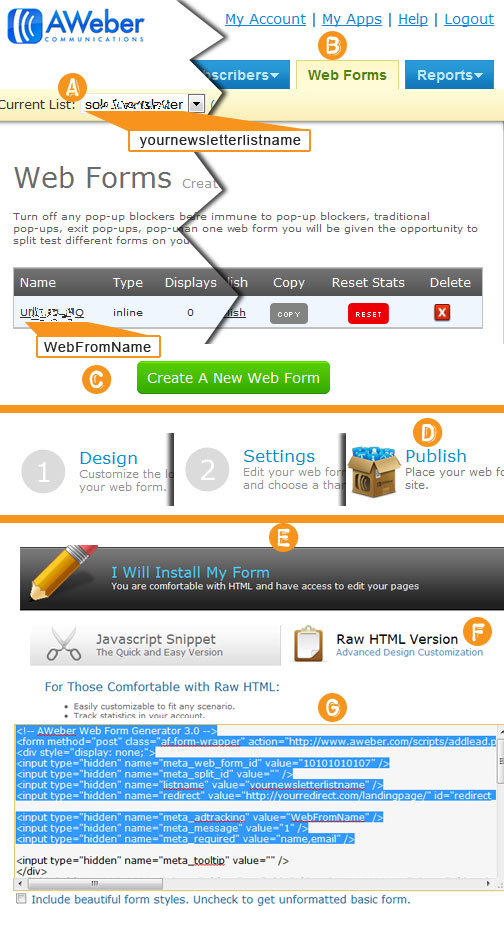
Areas D – G all happen within the web form tool of Aweber. Once your web form is published “(D)” you select the raw HTML “(F)” and use only a few parts of the provided HTML code shown in “(G)”.
Select your Aweber Web Form Code in Aweber Admin
Here is the chunk of code you want to pull out from Aweber and work with. NOTE, this is not exactly acceptable as is!
<form method="post" class="af-form-wrapper" action="http://www.aweber.com/scripts/addlead.pl" >
<input type="hidden" name="meta_web_form_id" value="10101010107" />
<input type="hidden" name="meta_split_id" value="" />
<input type="hidden" name="listname" value="yournewsletterlistname" />
<input type="hidden" name="redirect" value="http://yourredirect.com/landingpage/" id="redirect_0edaabcdc860c01907c048079e7a5adc" />
<input type="hidden" name="meta_adtracking" value="WebFromName" />
<input type="hidden" name="meta_message" value="1" />
<input type="hidden" name="meta_required" value="name,email" />
The code snippet above is just reference, so don’t use it yet! If you have your form submission redirecting to a certain page, you’ll want that full url and make sure to keep the id=”redirect_0ed…” with the url.
4. Your CSS styled Aweber Code to place in your Text Widget
Here is the HTML code you with CSS. You’ll place your version of this code using the right listname, webform id, redirect, ad tracking etc into a basic Text Widget in your Widgets area. Place this Text Widget inside the “Newsletter Widget” you created using steps #1 and #2 of this tutorial. NOTE, this code is still needs your unique Aweber elements but is otherwise ready to use as is!
<div id="enews">
<div class="enews">
<h4>Your Newsletter Title </h4>
Your custom call to action text for readers to signup to your newsletter
<form id="subscribe" action="http://www.aweber.com/scripts/addlead.pl" method="post" target="_parent">
<input type="hidden" name="meta_web_form_id" value="10101010107" />
<input type="hidden" name="meta_split_id" value="" />
<input type="hidden" name="meta_adtracking" value="WebFromName" />
<input type="hidden" name="unit" value="yournewsletterlistname" />
<input type="hidden" name="redirect" value="http://yourredirect.com/landingpage/" id="redirect_0edaabcdc860c01907c219f69e7a5adc" />
<input type="hidden" name="meta_message" value="1" />
<input type="hidden" name="meta_required" value="from" />
<input type="hidden" name="meta_forward_vars" value="0" />
<input type="hidden" name="meta_required" value="email" />
<input type="hidden" name="meta_tooltip" value="email||Email" /><input value="Enter your email address..." id="subbox" onfocus="if ( this.value == 'Enter your email address...') { this.value = ''; }" onblur="if ( this.value == '' ) { this.value = 'Enter your email address...'; }" name="email" type="text">
<input name="submit" value="Sign Up" type="submit" /></form>
</div>
</div>
5. CSS for Newsletter Box
Download the graphics which are necessary and place them into your child theme’s /images/ directory. Then copy the code below and put it into your child theme’s style.css file:
/* eNews Extended Widget code modified from original source http://www.briangardner.com/email-newsletter-signup-box/
———————————————————— */
.enews {
background-color: #e7e7e7;
border: 9px solid #ddd;
margin: 0 10%;
}
.enews.widget-wrap {
border: 1px solid #fff;
}
.enews {
background: url(images/enews-ribbon.png) no-repeat top left;
margin: 17px 18px;
overflow: hidden;
padding: 45px 50px 40px;
text-align: center;
text-shadow: 1px 1px #fff;
}
.enews #subbox {
background: #fff no-repeat center left;
-moz-box-shadow: 0 0 3px #bbb;
-webkit-box-shadow: 0 0 3px #bbb;
box-shadow: 0 0 3px #bbb;
color: #999;
margin: 10px -7px 10px 0;
padding: 13px 0 13px 37px;
width: 80%;
}
.enews #subbutton {
background-color: #666;
color: #fff;
padding: 13px 12px;
}
.enews #subbutton:hover {
background-color: #555;
}
Hopefully that made sense and works for you. I also used this Aweber Post about the form html to wrap my mind around what was needed from Aweber code


Wow Justin
Incredible tutorial! I had a terrible time implementing this on my site before reading this.
One question, I have the form at 3 different places in my site now. How do you keep track of which form is getting the most use?
Thanks so much
Hey Jeff,
Glad this helped. You might get a better idea of how to track by segmenting or multiple forms with different tracking as discussed here:
http://www.aweber.com/blog/email-marketing/start-segmenting-3-easy-steps.htm
http://www.blogmarketingacademy.com/using-multiple-opt-ins-to-track-what-works-aweber/
If you use multiple forms (basically duplicate your signup form in Aweber as many times as you need) and use a unique form that looks the same in various areas, you’ll see which forms are converting by your Aweber signup stats.
I use Gravity Forms so I have simply created multiple Gravity Forms (that each go to one aweber list) and I can see which forms are converting via my Gravity Form admin in wordpress. I also can see which form converts for my list by logging into Aweber and my list sees each Gravity Form as its on ad and shows it in the ad tracking field on Aweber.
Hi,
How do you “Place this Text Widget inside the “Newsletter Widget” (instruction #4)? I was fine up until that point. Thanks.
Hi Rachel,
The code should be copied and pasted into a text widget.
In wordpress admin go to “Appearances” > “Widgets” > “Text” widget
Your text widget should be in your sidebar. Once you paste that code in your text widget, your form will display in the sidebar location on the website.
Note. In steps #1 and #2 you are adding a “newsletter widget” to your sidebar in the wordpress widgets area. This is just creating a dedicated sidebar area for your newsletter. The actual code from step 4 is put in a text widget and that text widget is placed in this newsletter area of the sidebar.
Hope that all makes sense.
Good luck!
Thanks Justin…it does not make sense but, oh well, that’s my problem. Thanks for responding though.
I already have a newsletter sign up box inside a text widget on my sidebar that I like. I was hoping to add a newsletter signup below each post.
I want to go back to Thesis…things were so much simpler there :)